
Thank you for choosing Pixora theme to build your portfolio and WordPress website.
Theme installation
Unzip file pixora_unzip_first.zip that you downloaded from us and install pixora.zip file. Read more how to install a theme →
Theme setup wizard
Pixora comes with a setup wizard that enables you to create the demo layout with just a few clicks.
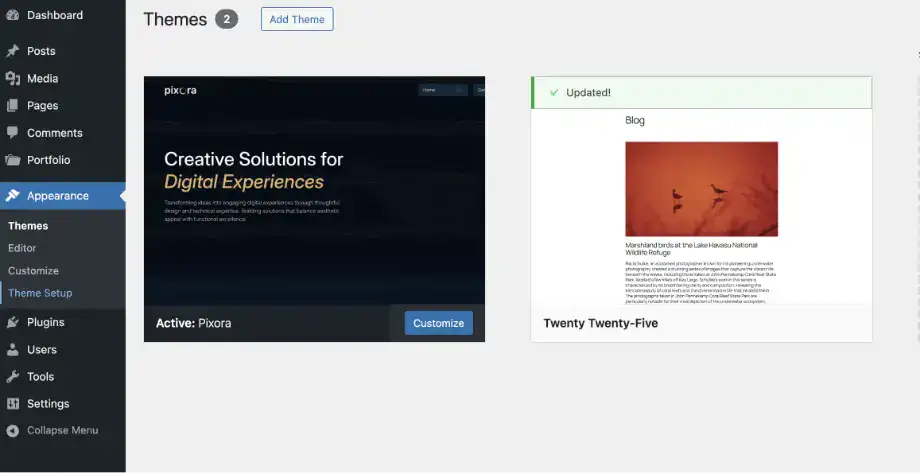
- After installing the theme, in your Dashboard go to Appearance > Theme Setup.
- The setup wizard will ask you to install and activate necessary plugins, and import the demo content. Please be patient while WordPress imports all the content.
- After the setup ends, all you need to do is assign the menus to their respective navigation blocks, edit the content and make it your own.
Recommended plugins
- Icon Block: A simple little block that allows you to add a custom SVG icon or graphic.
- Contact Form 7: The plugin is recommended for creating contact forms.
- Gravity Forms: An alternative contact form plugin that also has pre-styled form elements matching the theme design.
Editing the theme’s elements
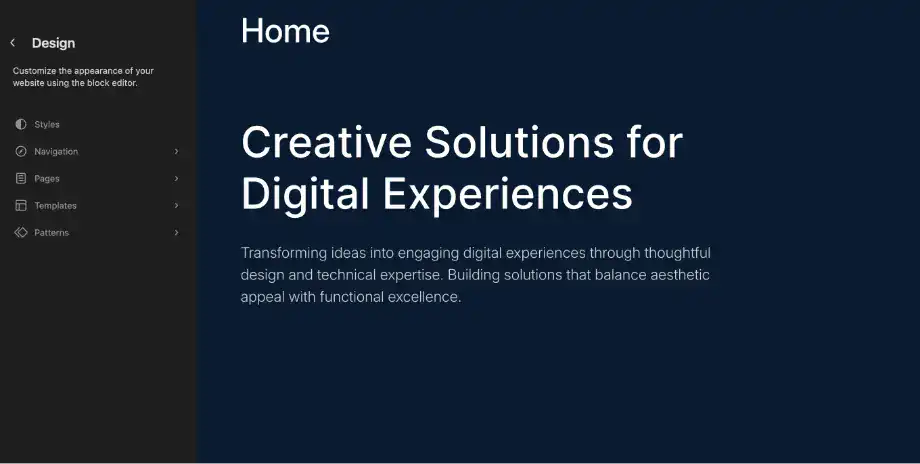
Pixora is a full site editing theme, thus you can edit most elements from the front end. In your Dashboard go to Appearance > Editor and there you can select and edit any element you like, change their color, font etc. You can edit the global styles, to change the elements throughout the websites.
Specific elements can be edited by selecting the template part you want to edit, like header or footer.
Static front page
In case you want to configure the theme manually instead of importing the demo content.
- Create a page.
- In your Dashboard go to Settings > Reading and assign the page to display in front and another page to display the latest posts.
- Add blocks and patterns you like to the page.
Portfolio post type
Pixora includes a custom Portfolio post type for showcasing your projects. After activating the theme, you’ll see a “Portfolio” menu in your WordPress admin sidebar.
To add a new portfolio project:
- Go to Portfolio > Add New
- Add a title, description, and featured image
- The portfolio items will automatically appear in portfolio archive pages and can be displayed using the Featured Portfolio and Portfolio Posts block patterns
Portfolio items support:
- Featured images (recommended size: 1200x1000px)
- Excerpts for short descriptions
- Categories and tags
- Custom fields
Portfolio archive
The portfolio post type includes a custom archive page that displays all portfolio items in a grid layout. The archive URL is /portfolio/ by default.
Individual portfolio projects include:
- Hero image section with rotated image effects (desktop)
- Project details section with scope information
- Image gallery with lightbox functionality
- Project navigation (previous/next)
- Portfolio lightbox
- Clicking on portfolio images opens a full-screen lightbox with:
- Backdrop blur effect
- Close button
- Responsive image display
Background effects
Pixora includes 7 stunning custom made animated background effects that you can use to enhance your website’s visual appeal.
Available background effects:
- Gradient Mesh: An animated gradient mesh that creates a dynamic, flowing background
- Floating Particles: Floating particles that move across the screen
- Animated Lines: Animated lines that create geometric patterns
- Liquid Ripple: Liquid-like ripples that flow across the background
- Liquid Wave: Smooth wave animations
- Fluid Motion: Fluid, organic motion effects
- Flowing Tubes: Animated tube-like shapes flowing across the screen
Setting background effects:
Global setting: Go to Appearance > Customize > Theme Settings and select a default background effect. This setting applies to all non-page content including blog posts, portfolio items, archive pages, and other post types. Pages have their own separate setting system and do not inherit the global setting.
Per-page setting: When editing a page, you’ll find a “Background Effect” meta box in the sidebar. Select an effect for that specific page, or leave it as “None” to have no background effect on that page. Each page can have its own unique background effect, independent of the global setting.
Custom block patterns list
Pixora comes with 14 pre-designed patterns that you can include in any page or post. Learn how to add block patterns →
Available block patterns:
- Featured Portfolio: Two-column layout showcasing portfolio projects with sticky sidebar and image grid. Perfect for displaying your best work on the homepage.
- Portfolio Posts: Grid layout for displaying multiple portfolio items in a masonry-style layout with hover effects.
- Featured Blog: Four-column grid for blog posts with featured images, dates, and hover effects. Great for showcasing your latest blog posts.
- Default Header: Clean header with logo, navigation menu, and CTA button. Includes responsive mobile menu.
- Default Footer: Comprehensive footer with call-to-action section, navigation links, social media icons, and copyright information. Features animated gradient background.
- Home Introduction: Hero section for homepage with large heading, description, and call-to-action button. Perfect for making a strong first impression.
- Animated Paragraph: Styled paragraph with word-by-word animation effects that reveal text as users scroll.
- Skills Blocks: Skills showcase with cover blocks displaying skills with icons and gradient overlays. Features animated entrance effects.
- Services: Services showcase with 3D animated sphere visualization. Displays your services in an engaging, interactive way.
- Highlight Pattern: Prominent highlight section with background image, text overlay, and call-to-action. Great for featuring important content.
- Principles Pattern: Two-column masonry grid layout for displaying principles, values, or key points with images and descriptions.
- Single Portfolio: Template for individual portfolio project pages with hero image section, project details, and image gallery with lightbox functionality.
- Guitar String Separator: Interactive animated separator with pluck behavior. Users can click or hover to create a guitar string pluck effect. Perfect for dividing sections creatively.
- Hidden 404: Custom 404 error page layout with animated “404” text and helpful navigation options.
Customization options
Color palette
Pixora includes an extensive color palette with 20+ preset colors and 20 gradient options. You can customize colors through the WordPress Block Editor’s color settings.
Available color presets:
Foreground, Background, Primary, Secondary, White, Gray, Light Gray
Success, Warning, Error, Primary Light, Primary Dark, Secondary Light, Secondary Dark
Text on Primary, Text on Secondary, Text on Success, Text on Warning, Text on Error
Available gradients include:
Deep Sea, Dark Depth, Red Sea, Pink Love, Cool Melon, Diagonal Shine, Diagonal Dark Sky, Diagonal Green Vibes, Diagonal Summer Sky, Diagonal Disco Pink, Violet Dream, Light Sense, Lemon Squeeze, Coral Jewel, Bordeaux Earth, Deep Aquamarine, Blue Sky, Pretty Earth, Meditation, Red Mars
Typography
The theme uses the Inter font family with multiple font sizes:
Small: Responsive sizing (clamp(1rem, 0.95rem + 0.15vw, 1.1rem))
Medium: Responsive sizing (clamp(1.25rem, 1.2064rem + 0.1835vw, 1.375rem))
Large: Responsive sizing (clamp(1.81rem, 1.7rem + 0.3vw, 2.03rem))
xLarge: Responsive sizing (clamp(2.75rem, 2.4rem + 1vw, 3.09375rem))
xxLarge: Responsive sizing (clamp(3.625rem, 3.3rem + 1.4vw, 5.75rem))
Shadows
Custom shadow presets:
None, Subtle, Small, Medium, Large, Glow, Accent
Block styles
Additional block styles for headings and paragraphs:
Narrow/Left: Constrains width to 910px and aligns left
Narrow/Center: Constrains width to 910px and centers content
Narrow/Right: Constrains width to 910px and aligns right
Custom image sizes
The theme includes two custom image sizes:
Portfolio Featured: 1200x1000px (center, top crop)
Blog Featured: 640x840px (true crop)
Form styling
The theme includes pre-styled form elements for:
Contact Form 7: All form fields, buttons, and labels are styled to match the theme
Gravity Forms: Complete styling for all Gravity Forms elements including checkboxes, radio buttons, and select dropdowns
Blog features
Blog grid
Blog posts are displayed in a grid layout with:
Featured images with gradient overlays
Post dates
Hover effects (image zoom)
Responsive design
Featured blog pattern
The featured blog pattern displays posts in a four-column grid with:
Overlay gradients on images
Post titles and dates
Full-width clickable areas
Smooth hover transitions
Post navigation
Blog posts and portfolio items include styled previous/next navigation with:
Circular navigation buttons
Animated arrow indicators
Hover effects
Pagination
Archive pages include styled pagination with:
Circular page number buttons
Previous/next navigation arrows
Current page highlighting
Special features
Guitar string separator
An interactive animated separator that responds to user interaction:
Hover to create a pluck effect
Animated SVG string visualization
Gradient color effects
Perfect for creative section dividers
3D Sphere animation
The Services pattern includes a 3D animated sphere with:
36 rotating rings creating a sphere effect
Smooth rotation animation
Responsive sizing
Hidden on mobile devices for performance
Animated paragraph
Text animation effect that reveals words one by one:
Scroll-triggered animations
Smooth color transitions
Word-by-word reveal
404 page
Custom 404 error page with:
Animated “404” text with blinking cursor effect
Centered layout
Helpful navigation options
Responsive design
Pixora is fully responsive and includes:
Mobile-optimized navigation menu
Responsive typography using clamp() functions
Adaptive layouts for all screen sizes
Touch-friendly interactive elements
Optimized background effects for mobile devices
RTL support
Pixora includes full right-to-left (RTL) language support:
Automatic RTL stylesheet loading for RTL languages
Proper text direction and alignment
Mirrored layouts for Arabic, Hebrew, and other RTL languages
Translation ready
The theme is translation-ready and includes:
.pot file in the /languages/ directory
All text strings are translatable
Use translation tools like Poedit to create translation files
Dynamic year shortcode
The theme includes a [current_year] shortcode that automatically displays the current year. Use it in your footer or anywhere you need a dynamic year display.
Tips and tricks
Using block patterns
To add a block pattern to your page:
- Click the + button to add a new block
- Click “Browse all patterns” or search for “Pixora”
- Select the pattern you want to use
- The pattern will be inserted and you can customize it
Customizing colors
To change the primary color throughout the theme:
- Go to Appearance > Editor > Styles
- Click on Colors
- Change the Primary color
- This will update buttons, links, separators, and other elements automatically
Portfolio best practices
For best results with portfolio items:
- Use high-quality images (at least 1200px wide)
- Add compelling excerpts for project descriptions
- Use categories to organize your portfolio
- Set featured images for all portfolio items
If you need more help regarding this theme, please contact us.